 Jaunty
Before you start
- An Ubuntu machine with systemd. Use Ubuntu 24.04 for the tested full install. Ubuntu 22.04 passed the stages before services start. Keep the machine on when you want to chat.
- A regular Linux login with sudo access. Open Terminal on that machine or log in by SSH as that user. Run the commands there unless a step tells you to use your phone or browser.
- Internet access from the server. The installer fetches system packages and application dependencies. You’ll need
curl,sha256sumandtarfor the download steps. - Free space and ports. The doctor looks for more than 2 GiB free after installation. Jaunty uses port
8711for clients and local ports9121and8791for its own services. - A model provider login. Have your provider sign-in or API key ready if Hermes hasn’t been configured on this machine. Sign-in time and provider charges depend on your provider.
- An Android phone or a browser. The phone needs Android 7.0 or newer on 64-bit ARM. To use a browser, go from step 2 to the web app.
These steps use the installer introduced in server version 0.23.0. Check the server version in step 2 before downloading. The APK and server downloads are versioned separately.
1. Put your devices on one private network
Tailscale · Recommended
Get the client from Tailscale on the phone or computer you’ll chat from, sign in, and connect. In step 2, the installer sets up Tailscale on Ubuntu if needed. If it prints a sign-in link, open it and connect the server to the same tailnet. Your tailnet’s access rules must let your device reach the server.
Allow time to install Tailscale and sign in. The default installer path hasn’t been tested end to end on a blank machine. The author’s server uses Tailscale.
Same Wi-Fi
Put your phone or browser on the same trusted network as the Ubuntu machine. The server can be wired to that network. Use the commands marked Same Wi-Fi throughout this guide. They use --lan to skip Tailscale and serve plain HTTP on a private IPv4 address.
The server and client need to stay on that network to connect. If Ubuntu has several private addresses, see Choose the LAN address.
2. Install the server
Open a terminal on the Ubuntu machine. Keep it open as you download, verify and run the installer.
Download and verify
Server bundle 0.23.0 · SHA256SUMS.txt
This downloads the archive and checksum list into your home folder. If the terminal says curl is missing, use the links above and put both files in your home folder before verifying.
Replace this site's address in the commands with the scheme, hostname and any port of the download site, without the trailing slash.
cd ~ && curl -fLO "this site's address/jaunty-server-0.23.0.tar.gz" && curl -fLO "this site's address/SHA256SUMS.txt"
cd ~ && awk '$2 == "jaunty-server-0.23.0.tar.gz"' SHA256SUMS.txt | sha256sum -c -
Continue only when you see jaunty-server-0.23.0.tar.gz: OK. If the command fails or the archive is missing from the checksum list, download both files again from the same site and repeat the check.
Unpack and run
tar xzf jaunty-server-0.23.0.tar.gz && cd jaunty-server-0.23.0 && bash install.sh
tar xzf jaunty-server-0.23.0.tar.gz && cd jaunty-server-0.23.0 && bash install.sh --lan
The installer asks for administrator access when it needs to install missing system packages or Node.js 24 and npm from NodeSource, or to let its four user services run after logout. If your sudo password prompt shows no characters as you type, finish typing and press Enter. If you already have Node.js 24 or newer and npm, keep that Node executable in place because the service uses its path.
On the Tailscale path, administrator access may also be needed to install Tailscale and connect this machine. Open the sign-in link if prompted.
Jaunty installs a private copy of Hermes Agent v0.21.3 with six patches. Any existing ~/.hermes/hermes-agent stays in place. If ~/.hermes already has a model and login, Jaunty copies the model choice and links to the credentials. Otherwise, when you see “Choose your AI provider and sign in to use it with Jaunty.”, follow Hermes’s model picker to choose your model and authenticate.
The installer writes your Phone address, starts the services and runs the doctor. The clean LAN run ended with these lines. Your home directory will appear in the last line.
ok Local API, Hermes and hub
…
All set. To connect a phone or browser, run: /home/jaunty/.local/bin/studio pair
If you see a FAIL, go to Check and fix. If the installer stops during a stage, read the message above the stop and use the retry command it prints after addressing the cause. If it needs your systemd login session, log in directly or by SSH as your regular user and retry.
Choose the LAN address
Use this if the installer can’t choose an address or the printed address belongs to the wrong interface. Find the private IPv4 on the interface connected to your network.
ip -4 addr show up
Replace PRIVATE_IPV4 with that address, omitting the slash and prefix length. Run this from the unpacked folder. Keep the same address after --lan when you run the installer again.
bash install.sh --lan PRIVATE_IPV4
3. Install the Android app
On your phone, download Jaunty 0.23.0 for Android (112 MB) and open the APK. Allow your browser or file manager to install apps when Android asks, then open Jaunty.
Download time depends on your connection. You’re ready when Jaunty offers Scan pairing code and Enter pairing code.

4. Pair your phone
Open Jaunty first, then run this on Ubuntu. The QR, URL, eight-character Code, and Link it prints belong to one pairing. Use it once within 10 minutes.
~/.local/bin/studio pair
- Tap Scan pairing code and point the phone at the terminal QR. Or tap Enter pairing code, fill Server address and Pairing code from the terminal, then tap Continue.
- On Pair with this server?, check the address. Wait for Jaunty server found, then tap Pair. Jaunty opens Chats.
If the phone can’t reach the server, make sure Tailscale is connected on the phone and both devices are on the same tailnet. Then tap Retry.
If the phone can’t reach the server, check that both devices are on the same trusted network and that the printed URL uses the server’s private address. Then tap Retry.
If the code is invalid, expired or already used, run the pairing command again and use the new output.
5. Send your first message
In Chats, open Hermes. Type “What can you help me with?” in the message field at the bottom, then tap the up arrow. Your bot’s reply appears in the conversation.
If there’s no reply, read any error in the chat and run the doctor. A passing doctor confirms the model is configured and Hermes is reachable. If the chat reports a provider sign-in problem, open Hermes’s model picker for this install.
Set up with an AI agent
If you already have a coding agent with terminal access on the Ubuntu machine, paste the prompt for your network into it. Stay available for passwords and sign-ins.
Replace this site's address in the prompt with the scheme, hostname and any port of the download site, without the trailing slash.
Set up Jaunty on this Ubuntu machine as my regular user. Check that I’m in a systemd login session with sudo access, and that curl, tar and sha256sum are available. I’ll connect the client to the same Tailscale tailnet. Pause for passwords, provider choices or sign-ins so I can handle them.

Run in order, stopping if any step fails:
cd ~ && curl -fLO "this site's address/jaunty-server-0.23.0.tar.gz" && curl -fLO "this site's address/SHA256SUMS.txt"
awk '$2 == "jaunty-server-0.23.0.tar.gz"' SHA256SUMS.txt | sha256sum -c -
tar xzf jaunty-server-0.23.0.tar.gz && cd jaunty-server-0.23.0 && bash install.sh

Only unpack if the checksum reports OK for jaunty-server-0.23.0.tar.gz. Keep access on the tailnet. If installation stops, read its message and retry with the same network mode after addressing the cause. Finish by running ~/.local/bin/studio doctor and showing me its output. Once required checks pass, run ~/.local/bin/studio pair and show the pairing output to me here.
Set up Jaunty on this Ubuntu machine as my regular user. Check that I’m in a systemd login session with sudo access, and that curl, tar and sha256sum are available. I’ll use the client on the same trusted network. Pause for passwords, provider choices or sign-ins so I can handle them.

Run in order, stopping if any step fails:
cd ~ && curl -fLO "this site's address/jaunty-server-0.23.0.tar.gz" && curl -fLO "this site's address/SHA256SUMS.txt"
awk '$2 == "jaunty-server-0.23.0.tar.gz"' SHA256SUMS.txt | sha256sum -c -
tar xzf jaunty-server-0.23.0.tar.gz && cd jaunty-server-0.23.0 && bash install.sh --lan

Only unpack if the checksum reports OK for jaunty-server-0.23.0.tar.gz. Keep access on the trusted LAN and leave Tailscale out of the setup. If installation stops, read its message and retry with the same network mode after addressing the cause. Finish by running ~/.local/bin/studio doctor and showing me its output. Once required checks pass, run ~/.local/bin/studio pair and show the pairing output to me here.
Once the server is ready, install the app and pair. Ask for fresh pairing output if the code expires while you’re installing the app.
Bot computers
On amd64 Ubuntu, you can give a named bot a desktop it can see and control. The default Hermes bot can’t be given a desktop through bot creation. In testing, an idle desktop used roughly 140 MB of RAM.
Run this on your Jaunty server. Allow time to download Chrome and the desktop packages. The installer asks for administrator access to set up packages, the display service and its permissions.
bash ~/.local/share/hermes-studio-app/app/install.sh --with-computers
bash ~/.local/share/hermes-studio-app/app/install.sh --lan --with-computers
This installs Google Chrome from Google’s apt repository, the desktop packages, and the computer-use driver at ~/.local/bin/cua-driver. Jaunty’s sudo rule uses a root-owned helper to set up displays and permits the service commands that start or restart them.
- In Chats, tap the plus button, choose New bot, fill in Name and tap Create bot.
- Open the bot from Computers. Ask it to open Chrome. You can watch the desktop while the bot works.
A bot can be created even if its desktop fails to start. If it’s missing from Computers, check the display entries in the doctor. For a connected desktop that needs recovery, use Restart computer in its menu. Save open work first.
HTTPS and connecting tools
Same Wi-Fi uses plain HTTP. The HTTPS setup below requires Tailscale. To use it, connect your client to Tailscale and choose Tailscale before following the commands.
Use HTTPS if a tool needs a secure sign-in callback or you want browser notifications. Connect the client to the server’s tailnet, then run:
bash ~/.local/share/hermes-studio-app/app/install.sh --https
Administrator access lets Tailscale Serve forward HTTPS to Jaunty on the same server. Open the printed address ending in .ts.net/app/. It stays inside your tailnet. HTTPS serving was verified on a real server using the command below. The installer flag itself hasn’t been tested end to end.
See the Tailscale Serve command
The installer uses this command when needed and saves the HTTPS address for tool sign-ins in server.env. Use the installer command above to configure both.
sudo tailscale serve --bg --https=443 http://127.0.0.1:8711
Connect an app or tool
- Open Settings and choose Connections.
- Under Apps on your account, tap Connect for an available app and complete its sign-in. These hosted apps depend on your Nous account having them enabled. Every bot can use them once connected.
- Under Tools for each bot, choose a bot, then a tool. Follow the tool’s prompts and grant only the access you want that bot to have. Some tools require service credentials or a sign-in in your browser.
Use the web app
You can pair a browser as soon as the server is installed. Open it on a device on the same tailnet or trusted LAN. Each browser needs its own pairing.
~/.local/bin/studio pair
Open the printed Link, choose Continue in this browser and confirm with Pair. Or open /app/ at the printed URL, select Enter pairing code and use the printed code. Generate a fresh code if you’ve already used it on another device or 10 minutes have passed.
If you enabled HTTPS, open the HTTPS address ending in /app/ and use the code there. Once you see Chats, send your first message. Plain HTTP works for chat. The browser requires a secure page for notifications, camera and microphone access.

Live pages
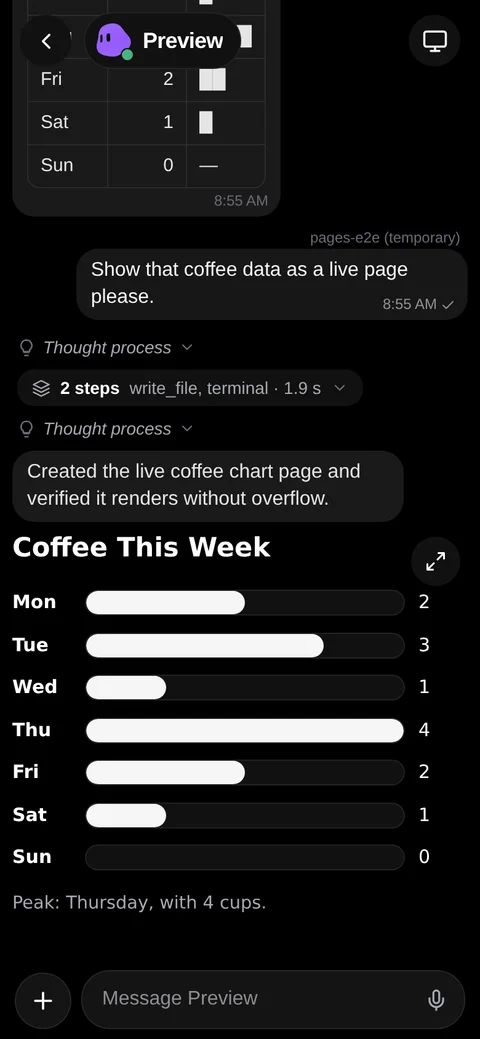
In Jaunty 0.23.0, ask a bot for something “as a live page.” For example, ask it to “Show a sample weekly budget as a live page.” A chart, table or dashboard appears in the chat in your theme. Tap it to open it full screen.
Live pages were verified with a real bot in the web app at phone and desktop widths. The Android build includes them, and they haven’t been tested on a physical Android phone yet.
Notifications
Android
Open Settings, choose Notifications and turn on Notifications. If Android has blocked them, tap Allow notifications. Choose what you want to hear about under Notify me about.
Turn on Background connection for replies while the app is closed. If Android pauses the connection, check Battery on the same screen. Open Jaunty after restarting your phone. There’s no push service, so notifications depend on the connection to your server.
Browser
Pair at the HTTPS address, then open Settings, choose Notifications and select Allow notifications if prompted. Keep the tab open in the background. Over plain HTTP, the browser shows Not available on this page in notification settings.
Check and fix
Run the doctor on Ubuntu as the user who installed the server. Use the JSON version if you need machine-readable results.
~/.local/bin/studio doctor
~/.local/bin/studio doctor --json
ok means a check passed. FAIL means a required check failed and the doctor exits with code 1. skip means an optional check didn’t pass. The doctor prints the repair command next to each FAIL or skip. Run the check again after a repair. A passing phone address check is a test from the server itself. Use pairing to check reachability from your phone.
These are the repair commands for a standard bundle install. For Same Wi-Fi, keep --lan on installer repairs and include the address if you selected one explicitly. The HTTPS repair requires Tailscale.
Required checks and fixes
- Node.js 24 or newer · Local API, Hermes and hub · Phone address · Model configured
-
These checks point to the installed installer. If only the model check fails, the installer opens the picker when Jaunty has no model set.
Tailscalebash ~/.local/share/hermes-studio-app/app/install.sh
Same Wi-Fibash ~/.local/share/hermes-studio-app/app/install.sh --lan
- Each of the four user services is active and enabled
-
Run the line for the service named in the failure.
Hermes servesystemctl --user enable --now hermes-studio-app-serve
Hubsystemctl --user enable --now hermes-studio-app-hub
Serversystemctl --user enable --now hermes-studio-app-server
Schedulersystemctl --user enable --now hermes-studio-app-scheduler
- Services run after logout
- Enable lingering for your login
sudo loginctl enable-linger "$(id -un)"
- Pinned Hermes with all patches
-
Use
--own-hermesto repair Jaunty’s private Hermes or move an older install to it.Tailscalebash ~/.local/share/hermes-studio-app/app/install.sh --own-hermes
Same Wi-Fibash ~/.local/share/hermes-studio-app/app/install.sh --lan --own-hermes
- Scheduler heartbeat within one minute
- Restart the scheduler
systemctl --user restart hermes-studio-app-scheduler
- More than 2 GiB free for Jaunty
-
Clear uv’s download cache
uv cache clean
If the check still fails, free more space on the filesystem that holds Jaunty’s data.
Optional checks and fixes
- Web app
- Use the same installer repair under Required checks to restore the bundled web app. Make sure you installed a bundle that includes it.
- HTTPS for tool sign-ins and notifications
- Run the installer command in HTTPS and connecting tools.
- Chrome for measuring pages · Bot display service · Desktop packages · Chrome executable · Computer-use driver · Passwordless display permissions · Desktop configuration
- Run the installer command in Bot computers. The executable checks look for
/usr/bin/google-chrome-stableand~/.local/bin/cua-driver. The configuration check appears if the doctor can’t read the desktop configuration. - Each configured local desktop service is active
-
Replace
DISPLAY_NUMBERwith the number from the failinghermes-display@entry, or copy the exact command the doctor prints.Restart the named desktop servicesudo systemctl restart hermes-display@DISPLAY_NUMBER.service
Open the model picker again
If the chat reports a provider sign-in problem, this opens the same Hermes picker used during setup for the private Hermes install. If you reused an existing Hermes login, Jaunty can share those credential files. Once you’ve signed in, send another chat message.
cd ~/.local/share/hermes-studio-app/hermes-agent && HERMES_HOME="$HOME/.local/share/hermes-studio-app/hermes" ./venv/bin/python -m hermes_cli.main model
Update
Server
Download and verify the newer bundle as in step 2. Unpack it in a separate folder outside the installed app folder. From the newly unpacked bundle, run:
bash install.sh
bash install.sh --lan
Carry over the installer flags you used, including any explicit LAN address. If you enabled bot desktops on an older install, include --with-computers to update their service references. The tested update took about 6 seconds after unpacking. Jaunty keeps its data in your home directory and may briefly stop services while it replaces the app.
Wait for the doctor and All set. Send a message from your paired client. You can then delete the unpacked folder from a standard bundle install.
Android
Download the newer APK and open it. Android can update the app in place when the package and signing key match and the build is eligible to update. Your chats are stored on the server.
Uninstall or start over
Jaunty has no server uninstall command. To remove a bundle install, first stop and disable the four user services. If you installed bot desktops, remove their system units and helpers before deleting the installed app.
systemctl --user disable --now hermes-studio-app-serve hermes-studio-app-hub hermes-studio-app-server hermes-studio-app-scheduler
If this machine’s display services all belong to this Jaunty install, the display installer can disable loaded instances and remove its shared template, helper, sudoers rule and launcher links. On a shared machine, identify the instances and files owned by your install before removing them.
bash ~/.local/share/hermes-studio-app/app/infra/displays/install.sh --uninstall
Remove the four matching .service files under ~/.config/systemd/user/ and the ~/.local/bin/studio link. For desktops, check the remaining per-display drop-ins and state listed below. The display uninstall leaves installed packages and Chrome’s apt source in place.
To start with empty Jaunty data, back up what you want to keep before removing ~/.local/share/hermes-studio-app and ~/.config/hermes-studio-app. Removing them deletes server-side data and pairings. Keep ~/.hermes if it belongs to a separate Hermes install. To start over, return to step 2 and pair again.
Where things live
~/.local/share/hermes-studio-app/- The installed
app/, privatehermes-agent/, Jaunty’shermes/home,studio.dband assets. Back up this directory and any provider files linked from~/.hermesto retain access to an existing login. ~/.config/hermes-studio-app/server.envholds connection settings shared by the server and CLI. This directory also holdsserve.env,studio.env,hub-token,computers.yamland per-display settings underdisplays/when used.~/.config/systemd/user/- The
.servicefiles forhermes-studio-app-serve,hermes-studio-app-hub,hermes-studio-app-serverandhermes-studio-app-scheduler. ~/.local/bin/and~/.local/share/uv/- The installer links
studioin the first directory and installsuvif missing. The second directory held the uv cache in the clean install. - Optional desktop files
/etc/systemd/system/hermes-display@.serviceand itshermes-display@<number>.service.d/50-hermes-studio-app.confinstance drop-ins. The helper is/usr/local/libexec/jaunty-<uid>/install-instance.shand its rule is/etc/sudoers.d/jaunty-displays-<uid>. Your login has~/.local/bin/hermes-display-env,~/.local/bin/hermes-display-chrome,~/.local/bin/cua-driverand~/.local/share/hermes-displays/, which includes each display’s Chrome profile.- System dependencies
- Ubuntu packages, Node.js and npm, and Tailscale on that path. If the desktop installer added Google’s Chrome apt source, it used
/etc/apt/sources.list.d/google-chrome.listand/usr/share/keyrings/jaunty-chrome.asc. Other software can share these dependencies and system settings.
Security
- Keep Jaunty’s port
8711private. Tailscale encrypts traffic inside your tailnet. LAN mode uses unencrypted HTTP, so use it only on a network you trust. Leave router port forwarding off. - Keep the pairing QR, code and link private. Anyone who can reach the server and use one before you do can pair that device. If a device is lost or shared, use the device list and revoke its pairing.
- Hermes uses your provider credentials from the server to authenticate with the provider. Jaunty’s client connects to your server. Connected tools can access whatever you authorize.
- Bot desktops have separate displays and Chrome profiles. They run as your Linux user and can access files that user can access.
- A checksum checks the download against the published file list. The checksum list comes from the same site, so use a site you trust.
~/.local/bin/studio devices
Replace DEVICE_ID with the id from the list for the device you want to remove.
~/.local/bin/studio revoke DEVICE_ID
What has been tested
Installer and feature checks from November 18, 2026.
| Setup | Result |
|---|---|
| Clean Ubuntu 24.04, LAN | Four services active and doctor passed in 2 min 28 s with a test model entry in place. All four returned after reboot. An unchanged rerun took 1.3 s. Updating from a newer bundle took about 6 s. |
| Ubuntu 22.04 | Pre-service stages passed. The full install hasn’t been tested yet. |
| Tailscale on a blank machine | The author’s server uses Tailscale. The default installer path on a blank machine hasn’t been tested end to end. |
| Tailscale HTTPS | The web app loaded with a valid certificate using Tailscale Serve on a real server. The installer’s --https flag hasn’t been tested end to end. |
| Bot computers | --with-computers ran on a real Ubuntu server. Seven desktops started and the doctor reported them. |
| New provider account | A first reply with a brand-new account hasn’t been tested yet. |
| Live pages | Verified with a real bot in the web app at phone and desktop widths. Included in the Android build, with physical phone testing still pending. |
| iOS | No iOS app yet. |